◄ IMPORTANT UPDATE ►
The attached Technical Instructions have been updated. Refer to the details below.
| DATE | TOPIC |
| November 8, 2019 | The background description has been updated. |
The most recent update in the attached Technical Instructions will be highlighted with a red box.
Please review this notification with your staff to assure that all relevant personnel have been briefed regarding this subject.
Thank you for your cooperation.
TECHNICAL INSTRUCTIONS
Safety (Noncompliance) Recall 19TA19
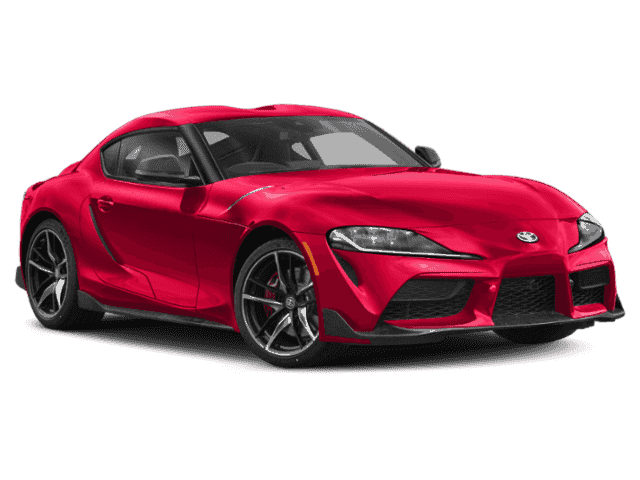
Certain 2020 Model Year Supra Vehicles
Back Up Camera Display – Brightness and Contrast Settings
The repair quality of covered vehicles is extremely important to Toyota. All dealership technicians performing this recall are required to successfully complete the most current version of the E-Learning course “Safety Recall and Service Campaign Essentials”. To ensure that all vehicles have the repair performed correctly; technicians performing this recall repair are required to currently hold at least one of the following certification levels:
- Certified (any specialty)
- Expert (any specialty)
- Master
- Master Diagnostic Technician
It is the dealership’s responsibility to select technicians with the above certification level or greater to perform this recall repair. Carefully review your resources, the technician skill level, and ability before assigning technicians to this repair. It is important to consider technician days off and vacation schedules to ensure there are properly trained technicians available to perform this repair at all times.
I. OPERATION FLOW CHART
II. IDENTIFICATION OF AFFECTED VEHICLES
- Check the TIS Vehicle Inquiry System to confirm the VIN is involved in this Campaign, and that it has not already been completed prior to dealer shipment or by another dealer.
- TMS warranty will not reimburse dealers for repairs completed on vehicles that are not affected or were completed by another dealer.
III. PREPERATION
A. TOOLS, SUPPLIES & EQUIPMENT
-
- Techstream ADVi (TSADVUNIT)
- Battery Diagnostic Tool (DCA-8000P)
- Toyota Supra Diagnostic Cable (01018-00118)
IV. BACKGROUND
If the rearview camera’s brightness is set at/near its lowest setting, and the contrast is set at/near its highest setting then, under certain lighting conditions, at the “next backing event”, the display may not meet a Federal requirement. In these settings/conditions, if a driver relied on the displayed image, this could increase the risk of a crash when reversing.
V. OVERVIEW OF REMEDY PROCEDURE (REPROGRAMMING USING ISTA)
Software inside the vehicle’s computers are reprogrammed using Toyota ISTA. Reprogramming of ECUs via Toyota ISTA requires that the software version status of the ECUs on the vehicle is unified, so reprogramming is always carried out for all ECUs.
It is not possible to select a target ECU and then reprogram it individually. Always follow the directions of this document when carrying out reprogramming work in order to prevent any potential damage to the ECUs due to by communication errors, voltage drops, or other problems.
I. INSTALL THE LATEST VERSION OF TOYOTA ISTA
1. It is CRITICAL to install the latest version of Toyota ISTA on the Techstream ADVi. Your current ISTA version may not be sufficient for this campaign.
Minimum* ISTA Version Required for this Campaign: 4.19.40.18949.
*Versions of ISTA higher than 4.19.40.18949 are also acceptable. As a best practice you should always download the latest version of ISTA when performing this campaign.
2. Access this URL for instructions on how to download the latest version of ISTA:
Toyota ISTA Installation Instructions
II. CHECK ISTA VERSION OF ADVi
1. Its CRITICAL to confirm that the ISTA version installed on your Techstream ADVi meets or exceeds version 4.19.40.18949 before proceeding.
2. Start Toyota ISTA.
Double click the icon to start Toyota ISTA
3. The following screen appears. Click “accept”.
4. Click on the Configuration Button as indicated in the figure.
5. Compare the installed verison to the minium reuqired version: 4.19.40.18949. If the version is less than version 4.19.40.18949, install the latest version using the instructions on page 4.
III. ENSURE THAT VEHICLE HAS COMPLETED PRE-DELIVERY SERVICE
Make sure that Pre-delivery Service has been completed before this reprogramming. If Pre-delivery service has not been completed before this reprograming, the reprogramming may not be completed correctly. Refer to T-SB-0083-19 for Pre-delivery technical instructions.
IV. PREPARE THE TECHSTREAM AVDi
1. Boot-up the ADVi.
2. Complete all pending Windows updates.
3. Disable any automatic Windows updates and configure antivirus software so that it doesn’t automatically run.
4. Disable all automatic screen savers.
5. Disable “sleep mode” within windows power settings.
6. Close all other applications.
7. Attach the Techstream ADVi directly to an AC Power Supply.
8. Do not perform any other functions while Toyota ISTA is reprogramming.
V. PREPARE THE VEHICLE
NOTICE: During reprogramming, each system (lights, mirrors, seats, windows, etc.) will be operated automatically for initialization. If operation is obstructed, a fault code is recorded, and the initialization may not finish normally. To prevent this, follow each instruction displayed on the screen while carrying out work.
1. Vehicle must be parked on a flat location that is not subject to direct sunlight
The ambient temperature around the vehicle must be higher than 59 degrees Fahrenheit.
2. Set the steering wheel and tires in the strait ahead position.
3. DO NOT place anything on the windshield so that the wiper can work normally, because the wiper may move automatically during reprogramming for initialization.
4. Remove all the inserted and connected data carriers from the vehicle. Unpair (disconnect) all Bluetooth devices/cell phones from the vehicle.
5. DO NOT place any on, in front of, or behind the front seats because the front seats move automatically during reprograming for initialization.
6. DO NOT cover the headlights with protective covers because temperature may rise and the headlights may be deformed or damaged.
7. Set the shift lever to “P” and then engage the parking brake.
8. Turn off the engine and then set all of the switches of the electrical components to off. Make sure the climate control and radio are turned off.
9. Close all doors and the back door, the hood must remain open as the battery charger will need to be connected to the charging terminal during the reprogramming process.
VI. CONNECT THE BATTERY CHARGER
Before starting the reprogramming procedure, please make sure you have connected the DCA-8000 battery charger. The usage of a charger during the ECU Software update process is mandatory.
During this reprogramming the headlights will turn on, and the seats and other electrical components will function. To prevent damage to the ECU’s, due to flat battery or voltage drop, ALWAYS connect the specified battery charger.
Unlike other Toyota vehicles, the new Toyota Supra is capable of drawing high amperage (a peak of 70 Amps flows at maximum) during diagnosis and repair. The Toyota Supra is equipped with an AGM type battery, discharges will affect the life span of the battery. AGM batteries must not have a charging voltage that exceeds 14.6 volts.
- Always connect the power supply of the battery charger to an outlet directly. If a power strip or other device is used, and multiple electrical components are connected, the battery charger may detect a power supply error due to insufficient current, and it may not be possible to charge the battery.
- Make sure that the battery charger is off before connecting it.
- Make sure you respect the correct polarity when connecting the battery charger cables like displayed in the illustration below.
- DO NOT disconnect the battery charger during reprogramming work.
VII. CONNECT THE TECHSTREAM ADVi TO THE VEHICLE
NOTICE: In the case of reprogramming, it is an absolute necessity that the vehicle is connected to the Techstream ADVi via the Toyota Supra Diagnostic Cable which has a LAN ethernet connection.
In order to maintain successful communication between the Techstream ADVi and the vehicle, the Toyota Supra Diagnostic cable must be used. Other interfaces that connect to the Techstream ADVi via USB are not allowed. Attempting to use such other devices may cause permanent ECU damage due to the slower communication speed.
1. Connect the Cable (connection sequence):
Always connect the SUPRA diagnostic cable first to your PC LAN port (1) and only after that to the OBD port of the vehicle (2).
If this order of operations is not respected, possible vehicle communication issues may occur when using Toyota ISTA software.
2. Position the cable.
Position the SUPRA diagnostic cable out of the vehicle as shown in the illustration. Otherwise the SUPRA diagnostic cable may be pinched, communication disconnected, and ECU’s permanently damaged.
The Toyota Supra Diagnostic cable should always be passed through the position shown in the figure below. If it passes through any other position it is possible that the cable will be damaged.
Using the gap between the rear fender and the side garnish, pull the Supra Diagnostic cable to the outside of the vehicle. Please use protective tape for fixation and protection of the cable.
Do not attempt to pass the Supra Diagnostic cable thought the window opening. The window glass may move during reprogramming or initialization.
Ensure the cable is out of the path of the front Driver’s seat. During initialization the driver’s seat moves and could damage cable or disconnect the OBDII connector during movement.
Additionally, do not attempt to pass the Supra Diagnostic cable through any other position of the door opening as it may cause damage to the cable.
VIII. CHECK THE “I-LEVEL” ACTUAL OF THE VEHICLE
1. Start Toyota ISTA.
Double click the icon to start Toyota ISTA
2. The following screen appears. Click “accept”.
3. Double click the operations bar to maximize the screen and make the tool bar visible.
4. Activate to PAD Mode.
PAD mode can be activated by pressing the start button 3 times in under 0.8 seconds (very fast) or by directly connecting the Toyota ISTA software and initiating the vehicle connection.
In order to have communication between the tester and the on-board ECUs the vehicle must be put into an energy mode similar to IG-ON with engine OFF. For the Toyota Supra this mode is called PAD mode and it ensures that all ECUs receive energy in order to reply to requests of Toyota-ISTA.
CRITICAL NOTICE: While the vehicle is in PAD mode all energy monitoring logic will be disabled. The technician must utilize a battery charger to maintain sufficient current during all diagnosis and programming activities. If the battery charger is not connected battery life will be affected and ECU damage could occur
NOTICE: Ensure the pre-delivery service has already been completed on the vehicle. Part of pre-delivery service involves switching of “transportation mode”, which is required before proceeding with this remedy procedure.
5. Do not open or close the driver’s door during the programming routine.
6. Complete vehicle identification.
7. At the “Connection manager” screen, select the vehicle identification number, and then click “Set up Connection”.
8. The identification of all ECU’s will start as shown below.
NOTICE: If the dialog box in the image below appears, click “OK” to close the dialog box, and then continue work. Toyota ISTA will attempt to establish a data exchange with the central server. In the absence of an available connection route (because of no Internet connection is available or the PC connection isn’t setup). Please verify your connection and click “OK”.
9. The control unit screen will appear after the identification has ended.
NOTICE: When Fault memory “Present” or “Existing” is displayed at the bottom left of the screen, check for DTCs. Note that this campaign does not cover the diagnostic fees and/or repairs for any DTC’s/
10. Check the “I-Level” actual.
11. Confirm if the vehicle requires reprogramming based upon the “I-Level actual” of the vehicle. Use the superiority decoder below.
| “I-Level” Actual of Vehicle | Required Action |
| Lower than S18T-19-07-538 | REPROGRAMMING REQUIRED. Continue with this procedure. |
| Equal to or Greater than S18T-19-07-538 | WORK IS COMPLETE. Reprogramming is not required.
Refer to page 30 for instructions on closing out of ISTA and disconnecting the diagnostic cable. |
| I-Level Superiority Decoder |
I-Level: S18T-19-03-330
1: Series (vehicle model)
EXAMPLE: Lower: S18T-19-03-585 Higher: S18T-19-07-555 S18T-19-07-555 is higher than S18T-19-03-585 because it was released in a later month. |
IX. PERFORM THE REPROGRAMMING
1. Perform the reprogramming if the vehicle’s current I-Level is lower than S18T-19-07-538.
2. Select service plan as shown below.
3. After the “calculation of measures plan closes” and the screen changes, click execute measures plan.
Note: If ISTA requests enabling codes in order to execute the measures plan, you should check the “import” box and then click “next”.
4. Click OK.
5. Check the warnings listed prior to proceeding.
6. WARNINGS:
NG | 1. DO NOT put your head or hand in the window of the vehicle you are reprogramming. Since the window may close automatically at the time of initialization, there is the risk of being pinched and injured. |
NGDo not open and Close | 2. DO NOT open or close the driver’s door and other door during the programming routine. |
| 3. The Programming could take 30 minutes, ensure that the vehicle is not accidentally disturbed by other team members during the reprogramming. |
7. The reprogramming progress status of each ECU is displayed in the ‘Status” column. The overall progress status is indicated at the top of the screen.
NOTICE:
- Even when the “Status” column is filled with checkmarks (), always check the display at the top center of the screen (header line) for the progress status, because initialization and other work is being carried out in addition to reprogramming.
- Wait until the reprograming in finished before manipulating the ISTA software to avoid interfering with the reprogramming.
8. Executing follow-up operations is displayed in the center of the screen.
Notice: If the following “Information” dialog box is displayed during “Executing follow-up operation”, click “OK” to continue the follow-up operation. After reprogramming is complete, follow the on-screen instructions and carry out initialization and other work.
9. “Calculating final context” appears at the center of the screen (header line). At the same time, a “Please wait….” message appears to allow for the completion of the action plan.
10. After the status of measures plan execution dialog box appears, click OK.
NOTICE: After reprogramming has completed Toyota-ISTA may request additional functions to complete. These additional functions may include initialization of seats, windows, mirrors or headlights. Toyota-ISTA may provide instructions such as ensuring there are no obstructions of the object that requires initialization. Please follow all necessary on-screen prompts and ensure that the vehicle is parked in a safe manner to complete each initialization. If these directions are not followed properly, the vehicle could produce additional DTCs.
In the example shown below, the “ride height sensors: start-up” service function” needs to be performed.
If ride height is required, you will need to insert the ride height for both the front and rear wheels. This will require you to measure this height in millimeters. The repair manual procedure can be found in this location:
Vehicle Exterior > LIGHTING (EXT) > HEIGHT CONTROL SENSOR > INSTALLATION
5. ADJUST HEIGHT CONTROL SENSOR
11. Confirm that the (actual) and (target) I-Level are equal.
12. Confirm that the I-Level actual of the vehicle meets or exceeds S18T-19-07-538.
| “I-Level” Actual of Vehicle | Required Action |
| Lower than S18T-19-07-538 | REPROGRAMMING REQUIRED. Refer to page to page 5
to check that your version of ISTA is the minimum required version. |
| Equal to or Greater than S18T-19-07-538 | WORK IS COMPLETE. Placing the vehicle in “Sleep mode” is required. Proceed with the procedure to place the vehicle in “Sleep mode”. |
| I-Level Superiority Decoder |
I-Level: S18T-19-03-330
1: Series (vehicle model)
EXAMPLE: Lower: S18T-19-03-585 Higher: S18T-19-07-555 S18T-19-07-555 is higher than S18T-19-03-585 because it was released in a later month. |
X. CLOSE OUT OF TOYOTA ISTA
1. Finish the reprogramming by clicking the close operation button.
2. Click ok when the “Close operation” dialog box appears.
3. Make sure that the frame of the icon at the left end of the toolbar at the top left of the screen has turned gray, and then click “x”.
4. Open the driver-side door, press the Start/Stop button once, and then close the door. This deactivates PAD mode.
5. Disconnect the SUPRA diagnostic cable.
XI. Place the vehicle in sleep mode for 15 MINUTES.
It is necessary to place the vehicle in sleep mode for 15 minutes to allow the KOMBI and fuel tank ECU to establish the correct size of fuel tank.
1. Sleep mode can be activated by shutting all the doors, hood, trunk and parking the vehicle for 15 minutes with keys away from the vehicle.
Campaign Designation / Phase Decoder
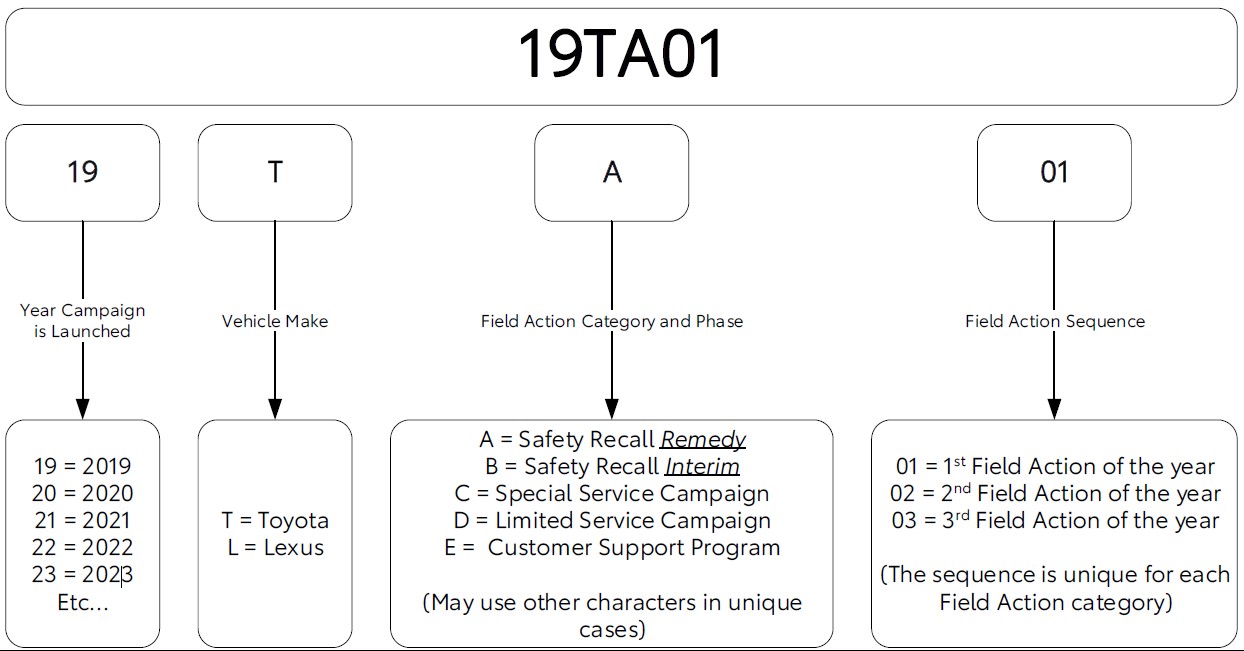 |
| Examples: 19TA01 = Launched in 2019, Toyota, Safety Recall Remedy Phase, 1st Safety Recall Launched in 2019 20TC02 = Launched in 2020, Special Service Campaign, 2nd Special Service Campaign Launched in 2020 21TE05 = Launched in 2021, Customer Support Program, 5th Customer Support Program Launched in 2021 |
Remedy Instructions and TSB
RCRIT-19V684-6582.pdf 3489.757KB
Remedy Instructions and TSB
RCRIT-19V684-0112.pdf 3203.44KB
Reprogramming
Approved J2534 Devices only provide reprogramming capabilities and do not support diagnostic scantool functions. For full diagnostic capabilities, please consider TIS Techstream or Techstream Lite
Toyota, Scion, and Lexus ECMs can be reprogrammed with the TIS Techstream, Techstream Lite, Diagnostic Tester, or can also be reprogrammed using a Toyota validated J2534 interface. Vehicle recalibration requires the use of the following:
- TIS Professional Level Subscription
- Toyota Calibration Update Wizard software (installed along with Techstream Software)
- Personal Computer running Microsoft Windows XP/2000 or later operating system
Toyota strongly recommends USING ONLY VALIDATED INTERFACE DEVICES that appear on this list.
Toyota works closely with J2534 interface manufacturers to ensure that their hardware works safely and efficiently with our products. Every device listed on this page has been thoroughly tested and validated on Toyota, Scion, and Lexus vehicles.
It is important to understand that only the specific devices, firmware, DLLs and APIs listed here have been tested by Toyota. We do not recommend use of any other J2534 device, firmware, DLL or API that is not listed here. Changes to J2534 hardware/software is outside of Toyota's control; in some cases, changes made to device hardware/software can negatively impact reprogramming performance. Toyota makes every effort to continue to work with J2534 interface manufacturers to ensure continued product compatibility as our respective products evolve.
J2534 Approved Device Application Chart
| Device Name |
Supplier | Version | CUW Version |
Supported OS | ||
|---|---|---|---|---|---|---|
| Firmware* | DLL* | API* | ||||
| Flasher LT-Import | Bosch Diagnostics | 01.02.07 | 01.02.07 | 04.04 | 8.8 | B, C, D, E |
| Flasher PRO | Bosch Diagnostics | 01.09.18 | 01.09.18 | 04.04 | 8.8 | B, C, D, E |
| Mastertech VCI | Bosch Diagnostics | 13.0.75.27 | 2.0.75.27 | 04.04 | Testing in Progress | B, C, D, E |
|
VSI-2534 |
Dearborn Group | 1.112 | 2.05.22 | 04.04 | 8.10 | C, D |
| Drew Technologies | 01.09.18 | 01.09.18 | 04.04 | 8.8 | B, C, D, E | |
| Mongoose MFC | Drew Technologies | 01.02.07 | 01.02.07 | 04.04 | 8.8 | B, C, D, E |
| Drew Technologies | 1.1.12.0 | 1.1.12.0 | 04.04 | 8.16 | A, B, C, D | |
| Pass Thru Pro II | Snap-On | 01.09.18 | 01.09.18 | 04.04 | 8.8 | B, C, D, E |
*Original validated firmware/DLL versions may be superceded by the device manufacturer. Contact the device manufacturer if you are unable to find the versions listed above.
Supported Operating Systems
| A | Windows 8 (32-bit; 64-bit) |
| B | Windows 7 (32-bit; 64-bit) |
| C | Windows VISTA Home Basic, Home Premium, Business, Ultimate |
| D | Windows XP Pro SP1 or later |
| E | Windows 2000 SP2 or later |
For more information about the J2534 devices listed above, click on the vendor names. To report compatibility problems with listed hardware/software, please contact the device manufacturer.
Obtaining Calibration Files
The Flash Reprogramming Calibration CD is no longer available.
ECU Calibrations are now available for download directly from TIS. A valid TIS Professional Level subscription is required to access Calibration files. These files are compatible with the above mentioned scantools and J2534 interfaces. The Calibration page, located on the Diagnostics tab in the TIS site, contains all the most current vehicle calibration files, applicable Service Bulletins, and instructions for use. Select the following link for step by step instructions to access this page.
Note: Calibration Update Software is now included in the Techstream Software Installer. A valid TIS Professional Level subscription is required to download and install Techstream Software.

- J2534 Pass-Thru Programmer: TOPDON RLink J2534 is an advanced diagnostic and reprogramming tool that support all J2534 protocols, as well as D-PDU, CAN-FD and DoIP, ensuring compatibility with a wide range of modern vehicles. It offers extensive versatility with support for over 18 major automotive brands, including Chrysler, Ford, GM, Nissan, Toyota, Honda, Subaru, Land Rover/Jaguar, Volvo, Wuling, Volkswagen/Audi, Mercedes-Benz, and BMW. NOTE: Not compatible with Ford IDS diagnostic software
- All-in-One OEM Diagnostics: This J2534 ECU programming tool elevates your automotive repair capabilities to new heights by delivering complete OEM diagnosis. Boasting comprehensive full-system diagnostics, intuitive repair guides, advanced ECU programming and coding, common reset services, a vast library of repair information and more, this all-in-one solution empowers technicians to effortlessly tackle complex vehicle issues with ease. *Not compatible with 24V vehicles
- Proven Performance You Can Trust: Backed by over 10000 real vehicle tests and benefit from a wealth of practical experience, this OEM reprogramming tool guarantees stable and exceptional performance. Supported by TOPDON's dedicated technical experts with in-depth knowledge of both auto repair and J2534 Pass-Thru programming, the RLink J2534 provides prompt and professional assistance, ensuring a smooth setup and reliable compatibility
- Integrated Excellence, Always Up-to-Date: Featuring the exclusive RLink Platform to provide a streamlined experience with one-click driver installation and management, ensuring flawless integration with your OE software, maintaining the original performance quality. The built-in operation guide makes mastering OE software quick and easy, so you can get started right away. Plus, with lifetime free updates, your diagnostics will stay current with the latest drivers and innovations
- Efficiency Meets Versatility: Engineered to support three CAN channels simultaneously - CAN FD and CAN-CC included, giving you the edge in fast troubleshooting. To perfectly synchronized with the OE software, please diagnose with active subscriptions and make sure your computer system is running a compatible 64-bit Windows version (7, 8, 10 or later) to fully leverage the power of RLink J2534. *We don't provide extra OE software

- Advanced VCI Box, Industry-leading J2534 Pass-Thru Technology: This J2534 Pass-Thru Programmer is designed espically for technicians, independent shop owners, and DIY enthusiasts, enables fast, reliable computer-based programming. It supports all J2534 protocols—including the latest DoIP and CAN FD—ensuring full compatibility with both legacy and next-generation vehicles.
- High-Speed OEM-Level Diagnostics & Programming: Unlock true OEM functionality with comprehensive system diagnostics, guided troubleshooting, coding, adaptations, resets, and programming—all designed to slash repair time. This all-in-one tool eliminates the need for multiple OEM devices, boosting efficiency and cutting costs. Equipped with High-Speed USB, it delivers 10x more data per second than competing solutions
- Coverage for 17 Car Brands & Ultra Reliability: Works seamlessly for Chrysler, for Ford(Forscan), for GM, for Nissan, for Toyota, for Honda, for Subaru(SSM4), for Land Rover/Jaguar, for Volvo, for Wuling, for Volkswagen, for Mercedes-Benz, and for BMW. Backed by over 10000 real vehicle tests and benefit from a wealth of practical experience, this OEM reprogramming tool guarantees stable and exceptional performance
- User-Friendly RLink Platform & Expert Support: TOPDON’s proprietary driver management platform offers a clean interface and lifetime free updates. Access a rich library of real-world case studies to stay ahead of the curve. Backed by a support team with 10+ years of J2534 and automotive repair experience, we provide one-on-one assistance to resolve any technical issue.
- 6.6 ft USB-C Cable & Portable Storage Case: The RLink J2534 diagnostic tool features a 6.6ft USB 2.0 Cable and a 1.2 ft OBDII Extension Cable, allows to connection your computer easily outside the vehicle. The included handled carry case offers easy portability, storage, and hanging options—keeping your gear clean and ready to go, anywhere.
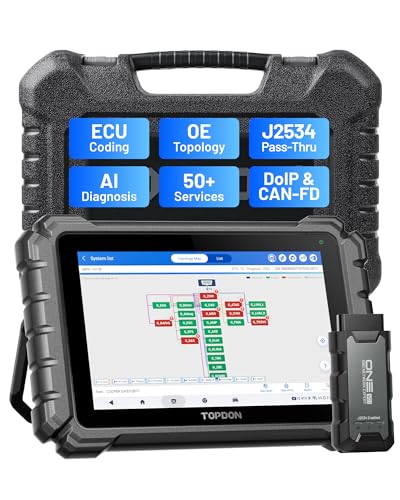
- Dual WiFi & 10.1" Touchscreen: Provides a stable, high-speed wireless link 3x faster than bluetooth, and a responsive, professional interface. Topdon ONE obd2 scanner diagnostic tool ensures smooth, non-lagging diagnostic scan, boosting mechanic efficiency
- J2534 Pass-Thru Support: The included ONE VCI supports the J2534 standard, allowing it to function as a pass-thru device when paired with OEM diagnostic software.Through TOPDON’s RLink platform, technicians can perform dealer-level coding, expanding in-house capabilities without investing in multiple factory automotive scan tools
- OE Topology Mapping: Visualize the vehicle’s ECU network exactly as it’s built.Zoom, pan, and highlight specific modules to pinpoint component issues with precision.Topology mapping displays real-time communication between modules
- 50+ Service Functions: Covers high-demand services like ADAS calibration, DPF regen, TPMS reset, ABS bleed, and throttle adaptation.Expands your service menu, allows you to charge premium rates, and turns away zero jobs due to lack of tooling. Vehicle-specific functionality may vary
- Advaned ECU Coding: 10 of the most serviced brands in North America, including full ECU coding and flash hidden support for BMW, VW, Au-di, Benz, Porsche, Toyota, Ni ssan and more. Enables module replacement, feature customization, and personal settings with automatic backup or restore.Lets your shop safely offer high-margin customization services, attracting more customers and boosting profit

- [J2534 Pass-Thru Programmer] - TOPDON RLink J2534 is engineered for professional technicians, delivering OEM diagnostic and reprogramming capabilities. It supports all J2534 protocols, CAN-FD, DoIP, D-PDU. Compatible with 17 vehicle brands—such as Chrysler, Ford, GM, KIA, Hyundai, Nissan, Toyota, Honda, Subaru, Mitsubishi, MAZDA, Land Rover/Jaguar, Volvo, Volkswagen/Audi, Mercedes-Benz, and BMW. RLink J2534 can help reduce the cost of purchasing equipment from different brands.
- [All-in-One OEM Reprogramming and Diagnostics] - When seamlessly integrated with OEM diagnostic software, this dongle enables you to perform a wide range of functions, including ECU programming and coding, DTC reading and clearing, active tests, component matching, adaptations, rewriting, guided troubleshooting, and more. This all-in-one tool eliminates the need for multiple OEM devices, significantly boosting work efficiency.
- [Tested, Trusted, and Proven for Accuracy] - TOPDON RLink J2534 is renowned for its reliability, having successfully completed over 10,000 real-vehicle tests. The wealth of data and hands-on experience behind it ensures consistent performance and accurate results. You can trust this tool to deliver optimal performance.
- [One-Click Installation, Continuous Updates] - The exclusive TOPDON RLink platform streamlines installation with a one-click driver setup, allowing you to quickly access OEM software for diagnostic and reprogramming tasks. With lifetime free updates, your RLink J2534 stays current without any additional cost, ensuring reliable performance for the long term. *We don't provide extra OE software.
- [Works with Windows Compatibility and OEM Software Subscription] - The RLink J2534 supports three CAN channels - including CAN FD and CAN-CC, providing advantages in the process of rapid troubleshooting. Compatible with Windows 7, 8 and 10 (64-bit) and higher versions of the system. For full functionality, an active OEM software subscription is required for each supported vehicle brand. Please note that the dongle does not include OEM software, which must be purchased separately to access brand-specific diagnostic and reprogramming features.
- 💯【Conta.ct us for Support Directly】For any issues experienced after purchase, please reach out to: 📞autelsupply@ outlook. com🛣️. Our team will provide perfect solution for you. For tech support or [explore additional accessory], please cont.act our team: 📞autelsupply@ outlook. com🛣️.
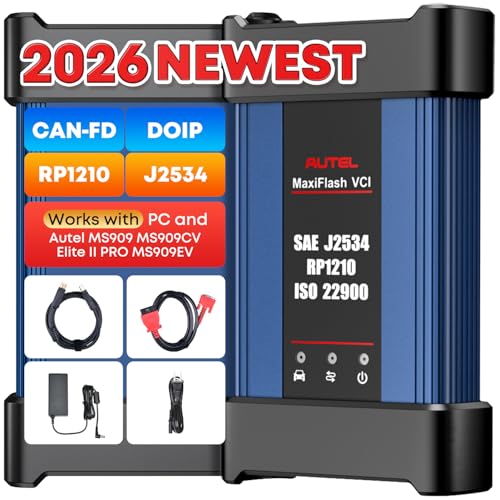
- 🌎【Autel J2534 Pass-Thru Progra.mmer】As an OEM Pass-Thru Progra.mmer Vehicle interface for multiple makes, Autel MaxiFlash J2534 support all J2534 protocols, D-PDU, CAN-FD and DoIP protocols. 2026 newer Autel MaxiFlash J2534 VCI can works with P-C and download OEM vehicle software, seamlessly conduct OE-level diagnostic-progra.mming-c0ding. Also, Work with Elite II Pro/ Ultra Lite/ MS909/ MS909CV/ MS909EV to directly pro.gram on Merce.des-Be.nz & BM.W. Autel J2534 Progr.ammer is a multi-functional device and supports 10+ major brands, including for Hond.a, G.M, LandRo.ver, BM.W, Chrysl.er, For.d, Hyun.dai, Ki.a, Merc.edes B.enz, Toyot.a, Volksw.agen etc.
- 🌎【Enhanced Protocol: J2534/D-PDU/RP1210/CAN FD/DoIP】Autel MaxiFlash JVCI is a blueto.oth communicate device, it supports latest CAN FD DoIP CAN protocols, compliant with automotive D-PDU/ J2534/ RP1210 standards. It can perform standard PassThru J2534 functions: compatible with Toyota Techstream, Volvo VIDA, Honda HDS, Jaguar Land Rover IDS and BM.W 3G for OEM diagnostics. CAN FD protocol is mainly for GM 2019+, DoIP protocol is mainly for Volvo 2018+, for L-and Rover/for Jaguar 2017+, for BM.W F chassis and G chassis.
- 🌎【Compatible with P-C/ WIND.OWS 】The Autel J2534 VCI can be connected to a compu.ter via a data cable; once the corresponding OEM software is installed, it enables do advanced progr.amming and c0ding on your vehicles. Easy Steps: 1) Connect to P-C via a USB cable 2) download OEM vehicle software 3) Start Diagnose. Take For.d for example, you can download OEM software on mot.orcraft.erservi.ce website, such as: For.d Diagnostic Software downloads, As B.uilt Data, Updated Cali.bration information, then use different software do relevant features.
- 🌎【Work with Autel Elite II Pro/ Ultra Lite/ MS909/ MS909CV/ MS909EV】This 2026 latest Autel J2534 Pass-Thru VCI is 100% compatible with Autel Elite II Pro Ultra Lite MS909 MS909CV MS909EV to perform advanced functions from diagnose to progra.mming.
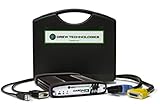
- ALL OF THE J2534 PROTOCOLS - This single unit has all of the protocols you need for your OEM J2534 reprogramming and diagnostics including the latest in DoIP and CanFD
- J2534 TECHNICAL SUPPORT - FREE for the life of the tool. Staffed by technicians who understand vehicle repair and J2534 Pass‑thru
- TOOLBOX WITH OEM APPLICATION DESCRIPTIONS - educational video tutorials and real-time news – Giving you the confidence and up-to-date knowledge to get the job done
- J2534 v05.00 API - The newest version of J2534 to give you the latest in pass-thru technology
- FUTURE PROOF WITH 4 CAN CHANNELS - Going beyond the 3 required by select Chrysler/FCA models, CarDAQ-Plus 3 also provides a 4th to meet the needs of future OEM applications
This product presentation was made with AAWP plugin.